
Your embed code and allowed domains
Create a key, add your websites and copy the code for the model and language you want.
In 5 steps
Open Embed code
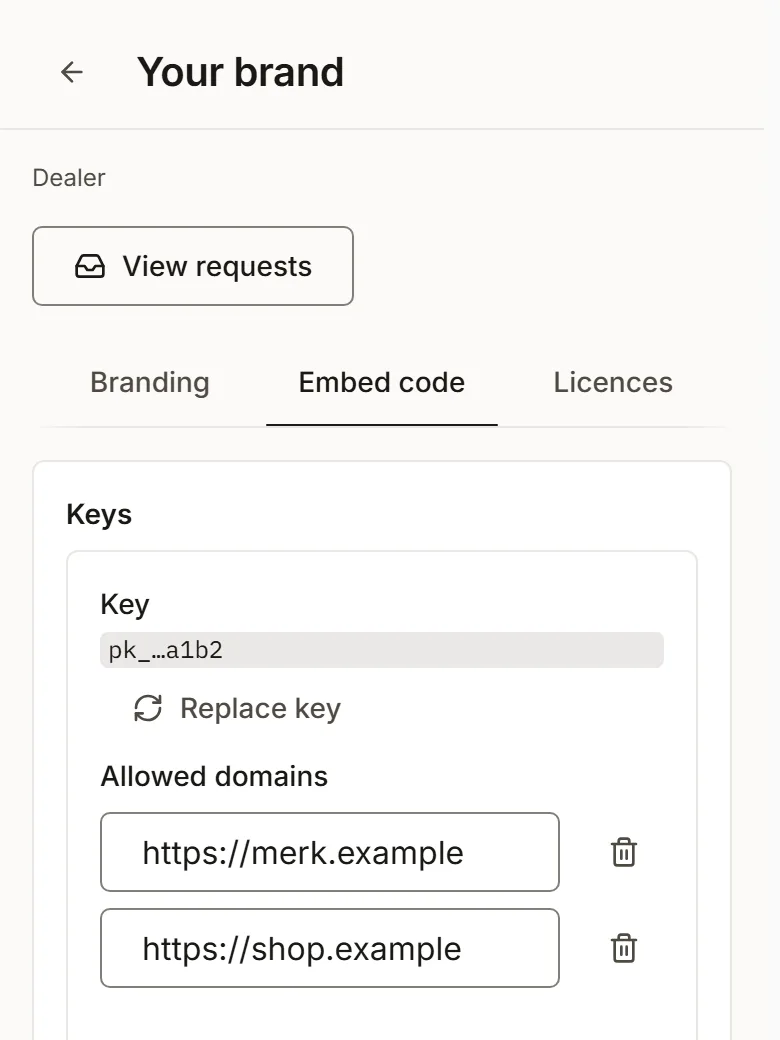
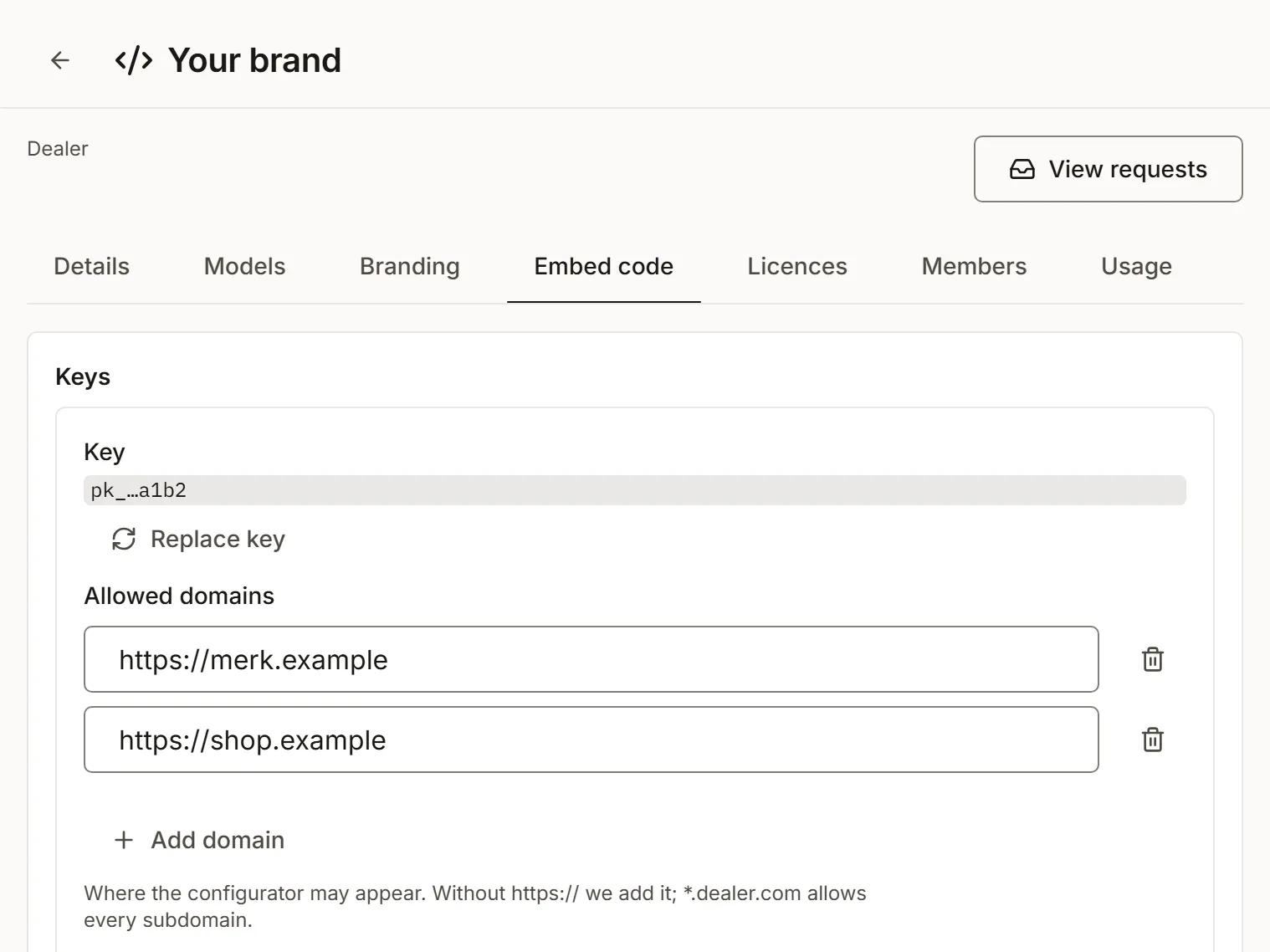
Choose Overview and click your organisation's name, or as a manufacturer the dealer's. Open the Embed code tab: the Keys are at the top, the code below them.
Create a key
If there is no key yet, click New key. Without an active key there is no code.
Add your websites
Under Allowed domains, enter your site's address, for example https://www.yourshop.com. More sites? Click Add domain. Then click Save key.
Copy the code
Under Embed code, choose the Model (if you have more than one) and the Language, and click Copy code.
Look at it first
Open preview shows the configurator in a new tab, as your customer gets it. Then place the code on your site.
Good to know
- Without https:// the portal adds it. With *.yourshop.com the configurator may appear on all your subdomains.
- Does it say ‘No website allowed yet’? Then the configurator stays empty on your site until your address is under Allowed domains.
- Does your site have a fixed header bar? Then set
--embed-offset: 64px(that bar's height) in your site's CSS. The configurator then fits right below it, with the price in view.