
Set your branding
Give the configurator your own logo, colours, font and corners, so your customer sees only your brand.
In 5 steps
Open Branding
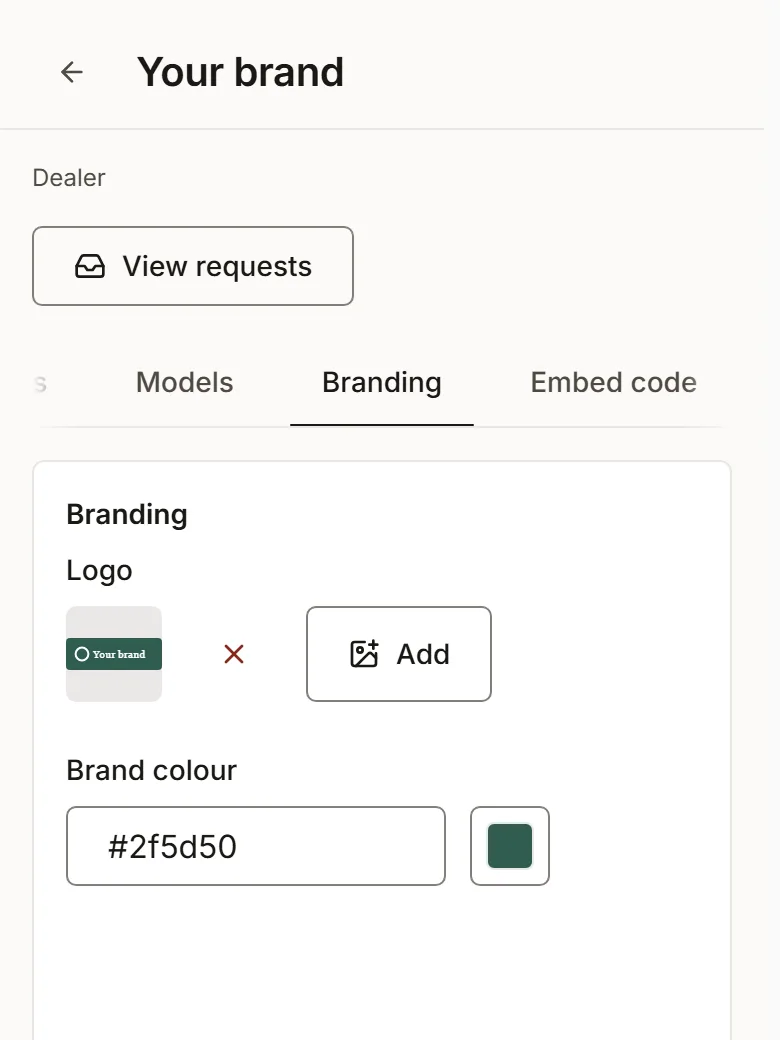
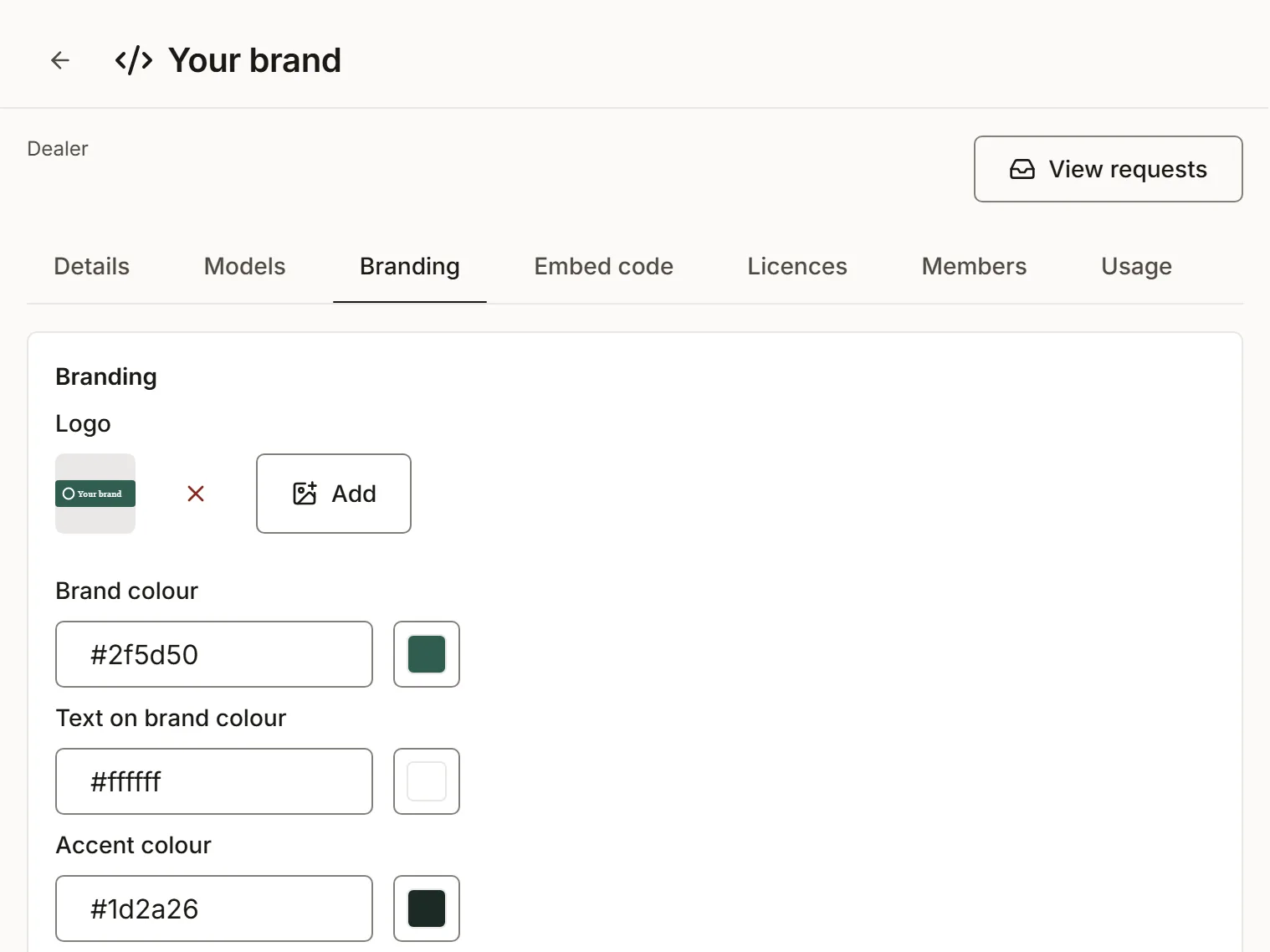
Choose Overview and click your organisation's name, or as a manufacturer the dealer's. Open the Branding tab.
Choose your logo
Click Choose logo and pick a PNG, JPEG or WebP of 2 MB at most.
Set your colours
Enter Brand colour (the buttons), Text on brand colour and Accent colour (links and prices on white) as #rrggbb, or pick them with the swatch next to each field.
Choose font and corners
Under Font choose Inter, Outfit or System font, and under Corner radius None, Small or Large. Under Preview you see the button as your customer will.
Save
Click Save branding.
Good to know
- The portal checks that everything stays readable: at least 4.5:1 between the text and the brand colour, and between the accent colour and white. If the contrast is too low, you cannot save yet.